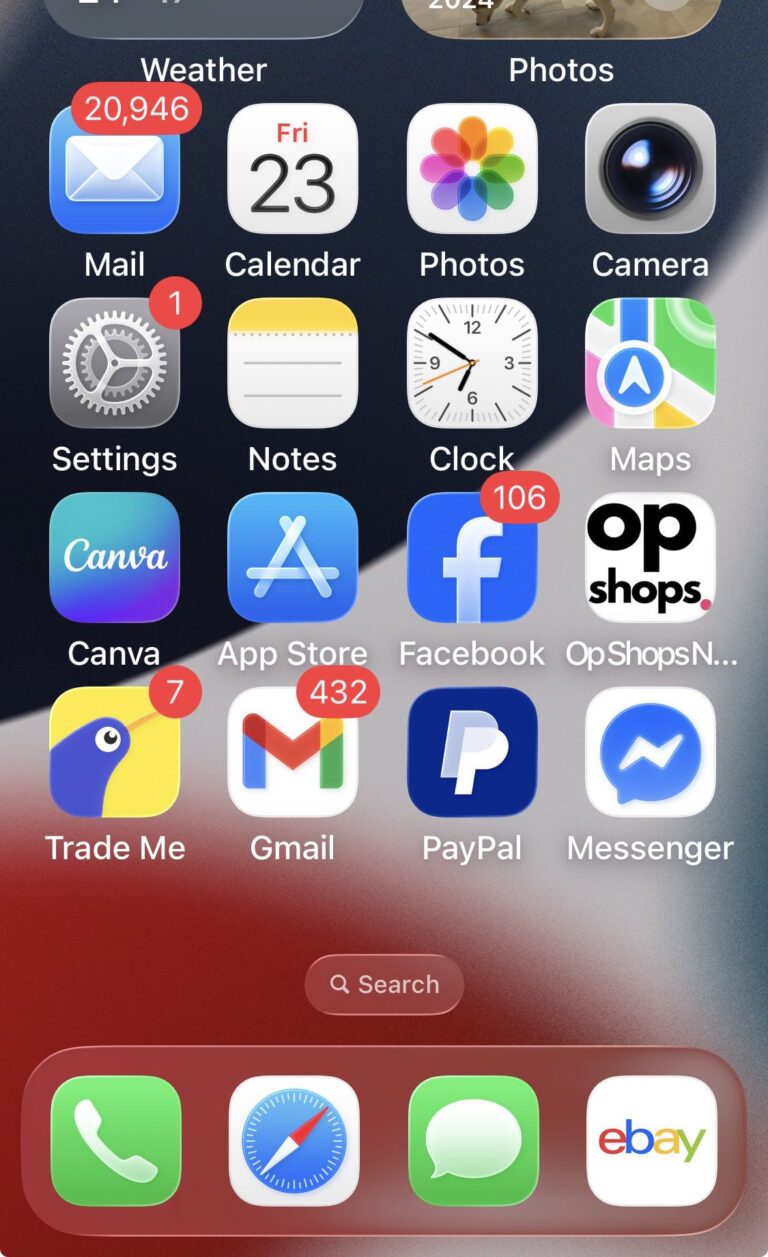
If you’ve searched for op shop apps, you’re not alone.
But here’s the good news: you don’t need to download an app to use opshops.co — and in many cases, you’re better off without one.
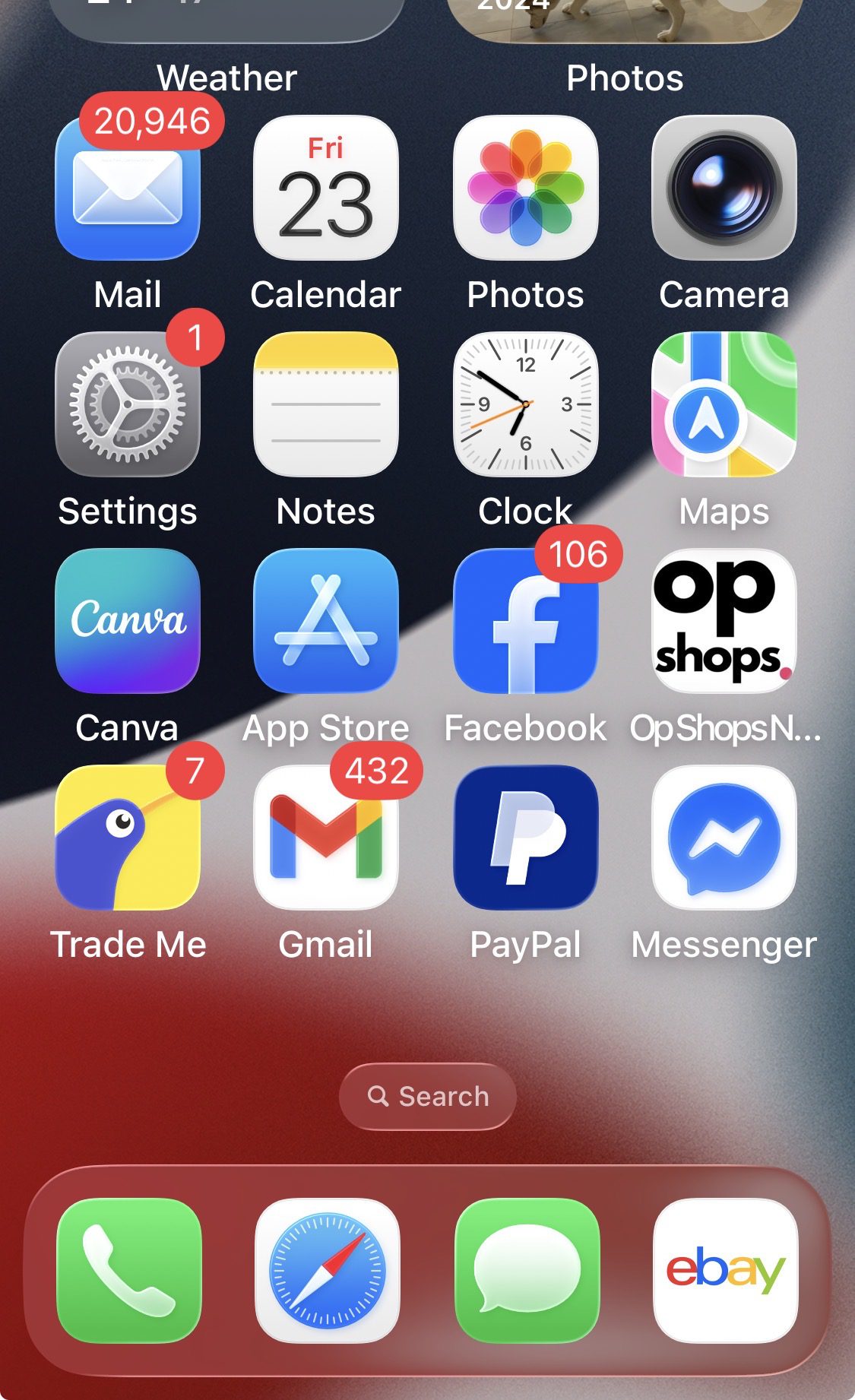
You can save opshops.co directly to your phone’s home screen and use it just like an app.
One tap. No downloads. No updates.
How to Add Op Shops to Your Phone (Works Like an App)
📱 On iPhone (Safari)
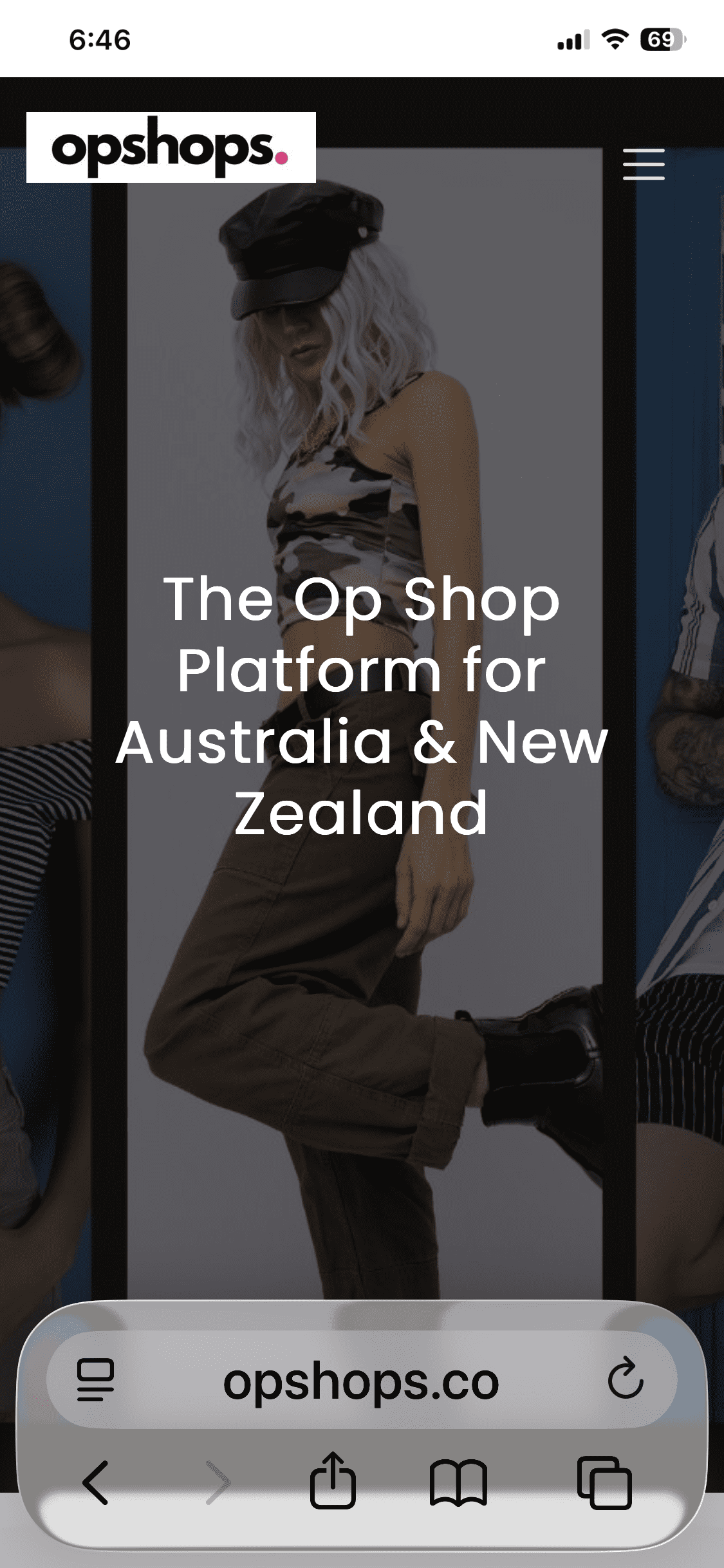
- Open opshops.co in Safari
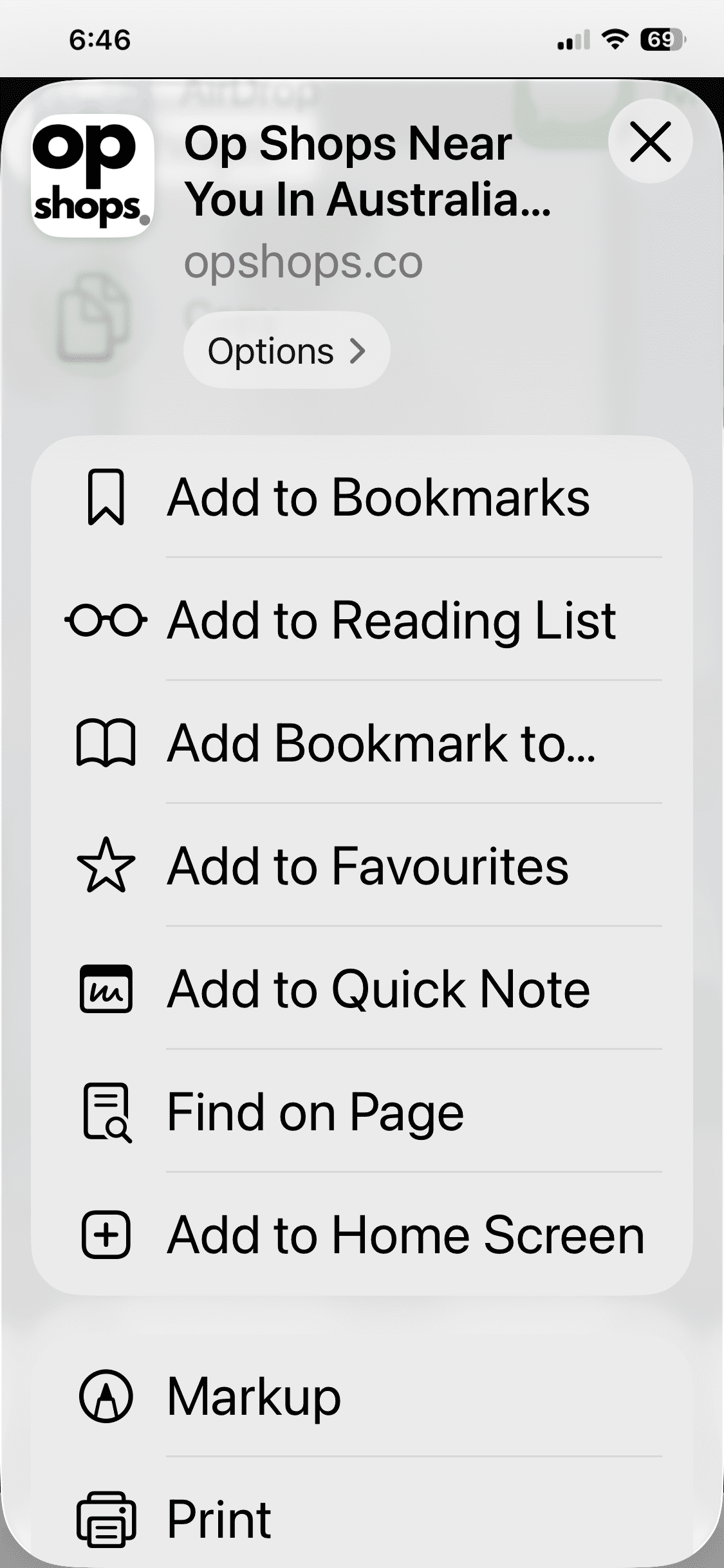
- Tap the Share icon (square with an arrow)
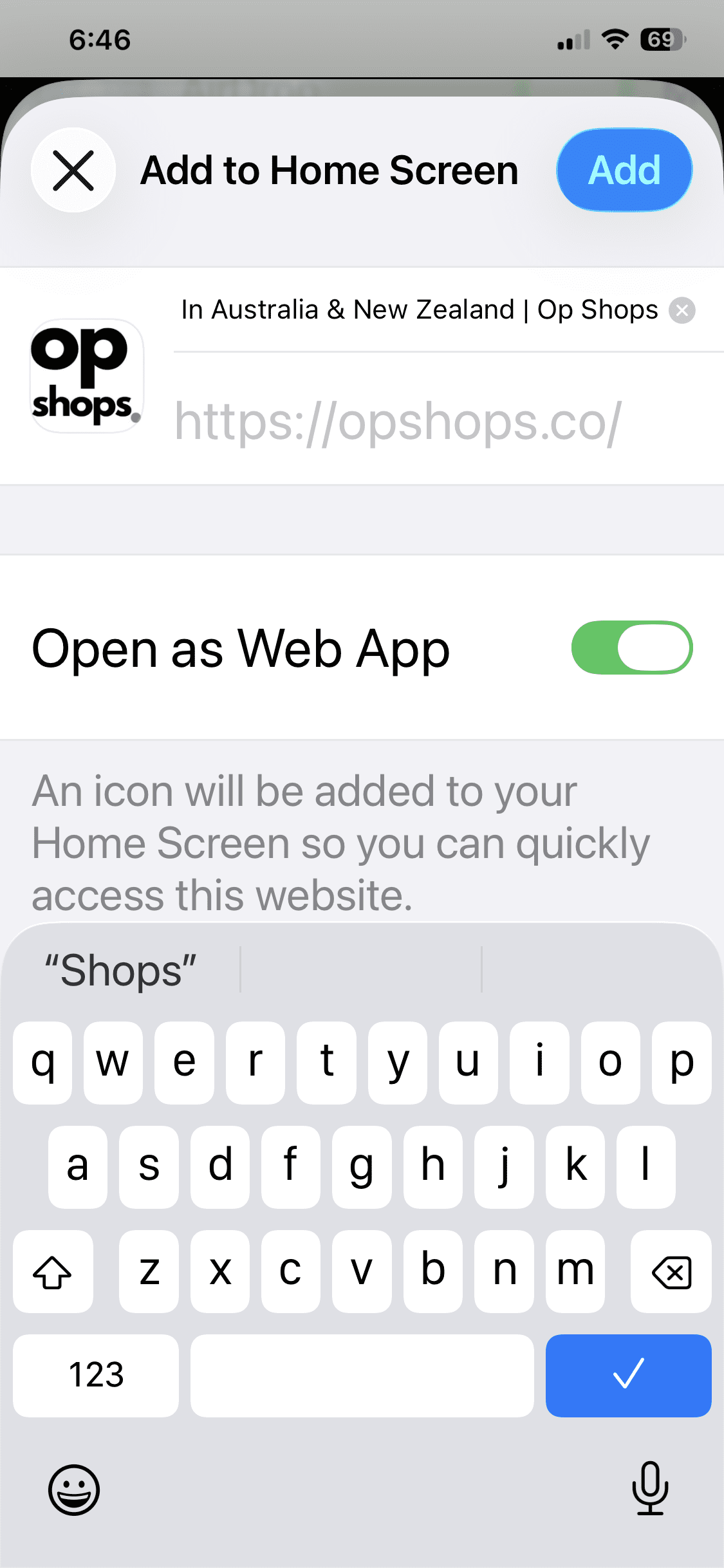
- Scroll down and tap Add to Home Screen
- Name it Op Shops
- Tap Add
You’ll now see an Op Shops icon on your home screen — just tap it anytime.
🤖 On Android (Chrome)
- Open opshops.co in Chrome
- Tap the three dots (top right)
- Select Add to Home screen
- Confirm
Done. You’re set.
Why This Is Better Than a Traditional App
Saving opshops.co to your home screen gives you the same convenience — without the downsides.
No app download
No storage space used
No manual updates
Always shows the latest listings, events, and changes
Because opshops.co is web-based, improvements and updates happen automatically. You always see the newest version.
One Platform. Always Up to Date.
Op Shops covers:
- Op shops and secondhand stores
- Repair and reuse services
- Online resellers
- Events and pop-ups
- Australia & New Zealand
Whether you’re browsing at home or standing outside a shop, your shortcut opens instantly.
Pro Tip
If you op shop regularly, move the Op Shops icon next to:
- Maps
- Your camera
It quickly becomes part of your routine.
Do You Still Need an App?
For most people — no.
Saving opshops.co to your phone gives you:
- Faster access
- Less clutter
- More up-to-date info
Simple.

Leave a Reply
You must be logged in to post a comment.